Start now. Don’t hasitate to test our service
Test account. Get full access to all channels and VOD
Free Trial / 24 Hour
Free Trial Option For 24 Hrs

Our Affordable Pricing Plans
$10 USD
One-Time Payment • Cancel Anytime- Works on Any Device
- 22 000+ TV Channels
- 120 000+ Movies & Series
- TV Guide (EPG)
- Anti-Freeze Technology
- PPV & 24/7 Channles
- Customizable Packages
- Support 24/7
$25 USD
One-Time Payment • Cancel Anytime- Works on Any Device
- 22 000+ TV Channels
- 120 000+ Movies & Series
- TV Guide (EPG)
- Anti-Freeze Technology
- PPV & 24/7 Channles
- Customizable Packages
- Support 24/7
$45 USD
One-Time Payment • Cancel Anytime- Works on Any Device
- 22 000+ TV Channels
- 120 000+ Movies & Series
- TV Guide (EPG)
- Anti-Freeze Technology
- PPV & 24/7 Channles
- Customizable Packages
- Support 24/7
$70 USD
One-Time Payment • Cancel Anytime- Works on Any Device
- 22 000+ TV Channels
- 120 000+ Movies & Series
- TV Guide (EPG)
- Anti-Freeze Technology
- PPV & 24/7 Channles
- Customizable Packages
- Support 24/7
100% money-back guarantee for your first 24 Hours.
New to IPTV! I'll Guide You
Confused? 🤔
Subscribe now for personalized assistance.
Subscribe to get the Details →
Confused? 🤔
Subscribe now for personalized assistance.
Guide for android box with play store →
Confused? 🤔
Subscribe now for personalized assistance.
Subscribe to get the Details →
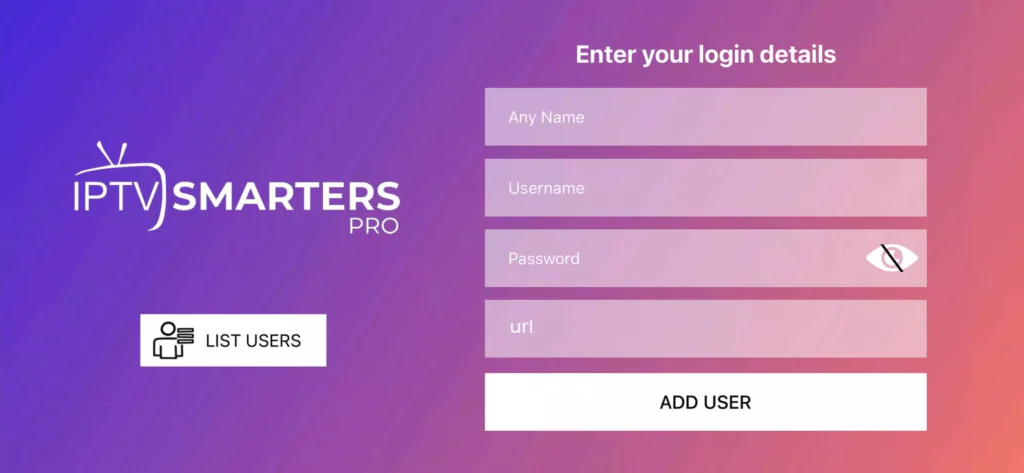
Step 1: Start by downloading IPTV Smarters app from the Apple Store through this URL:
https://apps.apple.com/in/app/smarters-player-lite/id1628995509
Or you can search for it on the App Store [Smarters Player Lite].
Install the app on your iOS device.
Step 2: Open the app once downloaded and enter the login details.
Step 3: Enter the login details provided after your subscription.
Step 4: Wait a few seconds.
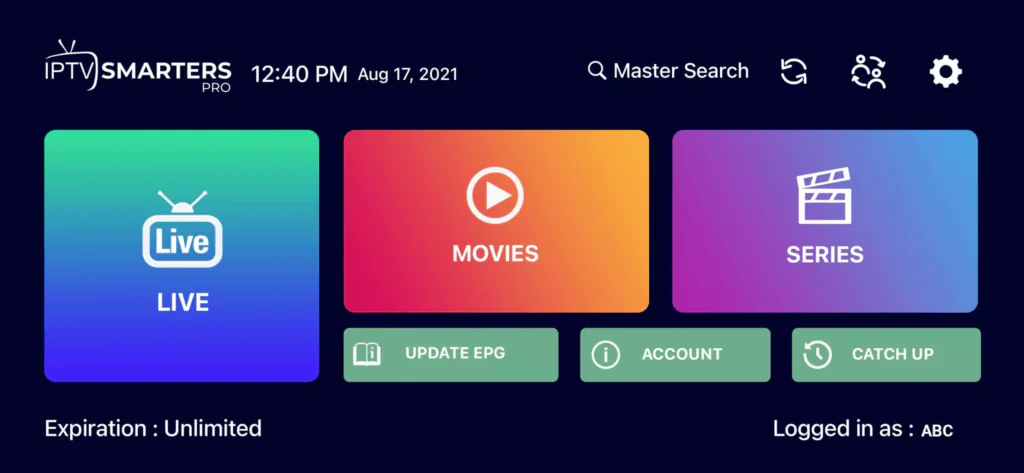
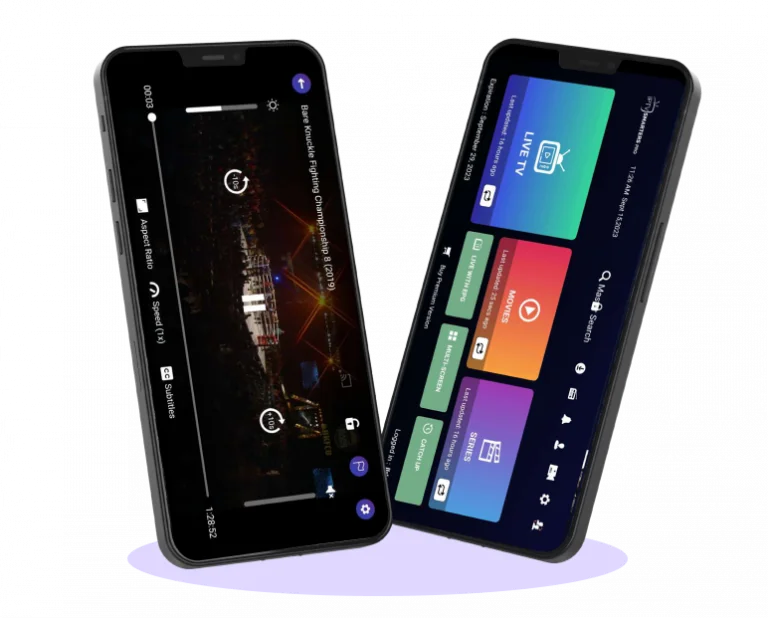
Step 5: Click on the “Live TV” icon as shown in the image.
Step 6: Select the channel group you want to watch.
Step 7: Click on the channel name, then double-tap on the small screen to switch to full screen.
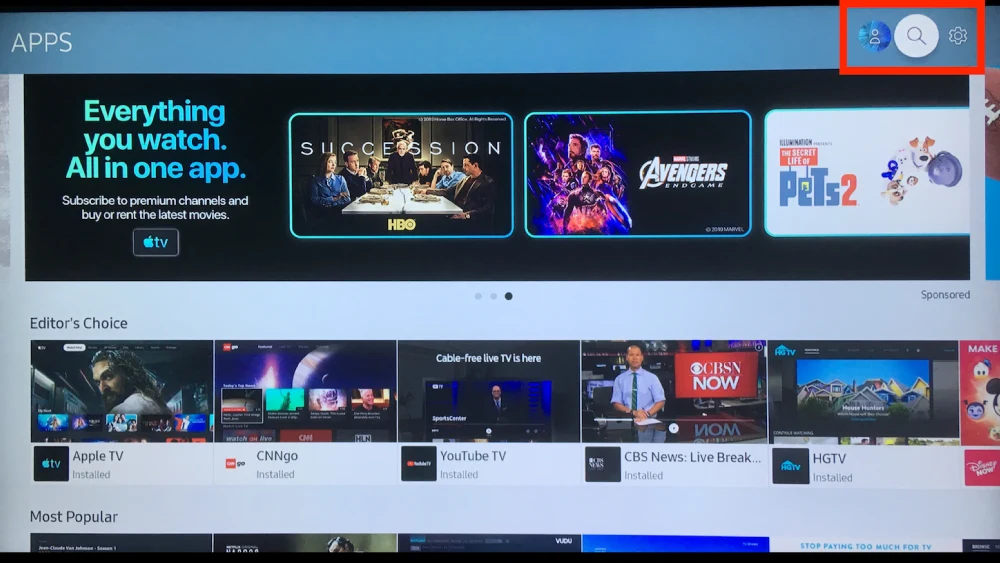
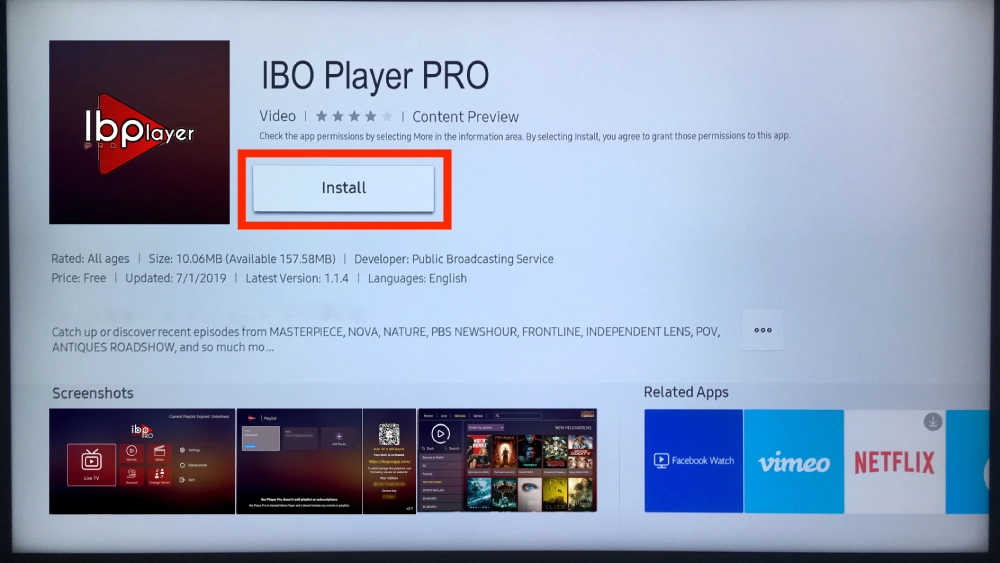
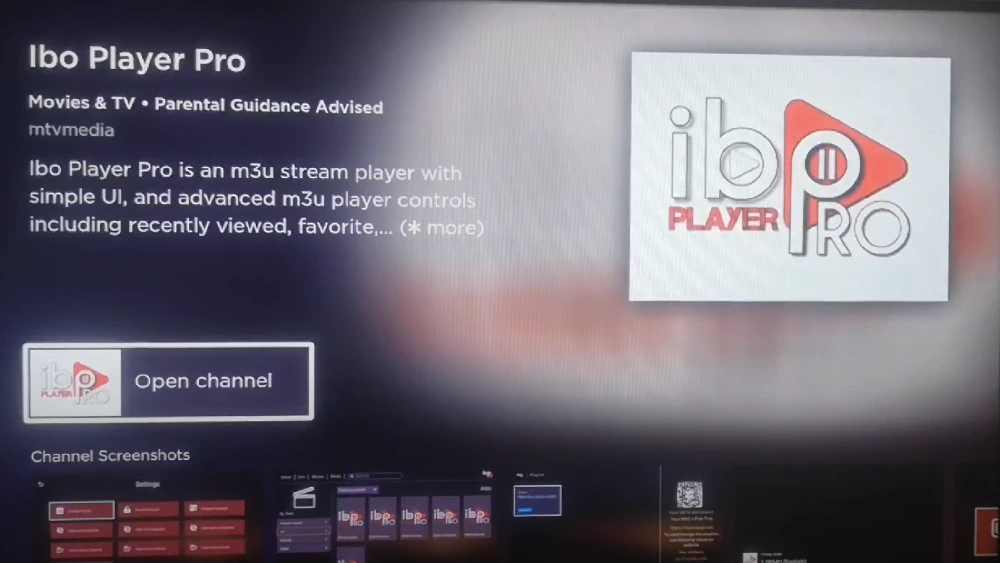
Step 1: Using your remote’s arrow buttons, highlight the magnifying glass icon or search feature, or go to the apps section to install apps.
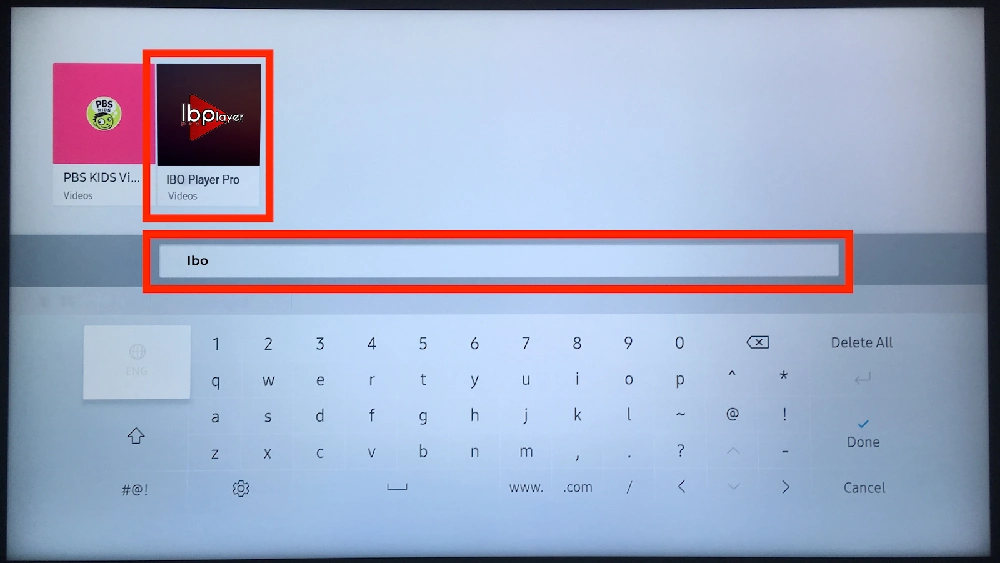
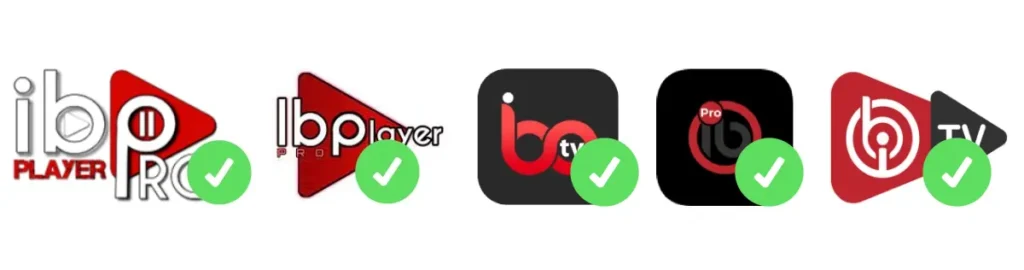
Step 2: Use the search feature to look for “ibo” and choose an app like the one shown in the second image.
Step 3: Select the “Install” option in the center of the screen to install the app.
Once installation is complete, please subscribe if you haven’t already. After confirming your subscription (payment), we will guide you and help set everything up.
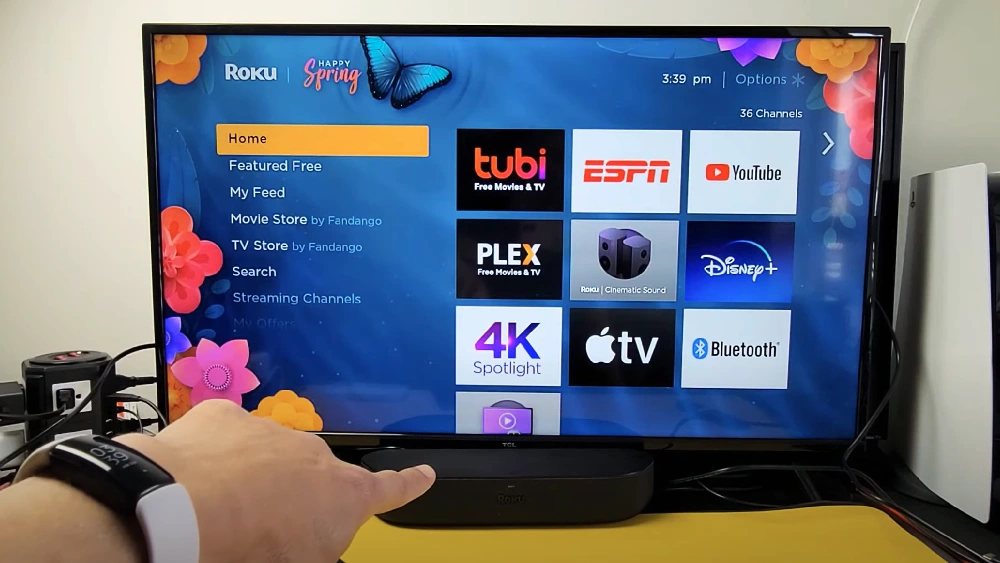
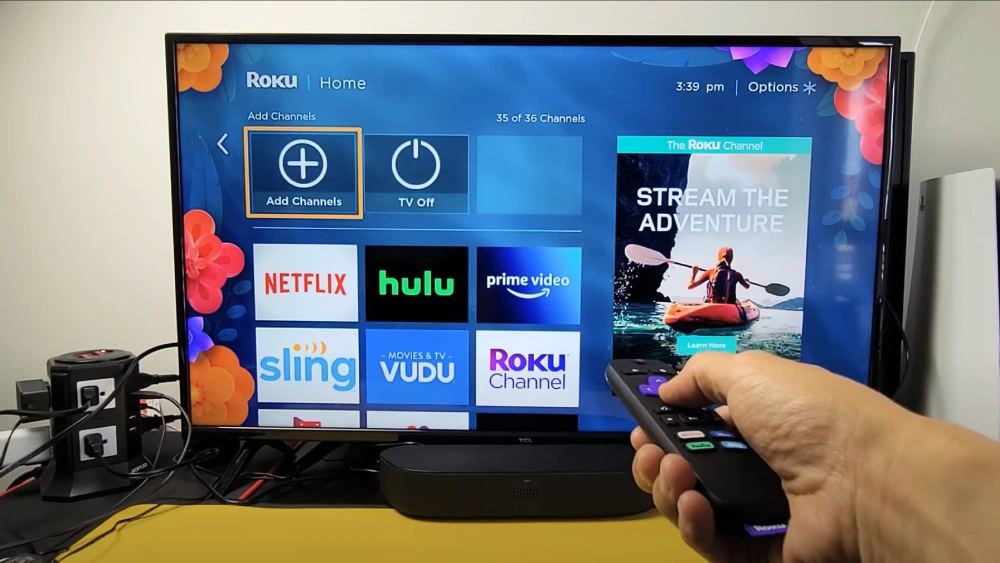
Step 1 : Go to your Roku home screen.
Step 2 : Select “Streaming Channels” from the sidebar to open the Roku Channel Store.
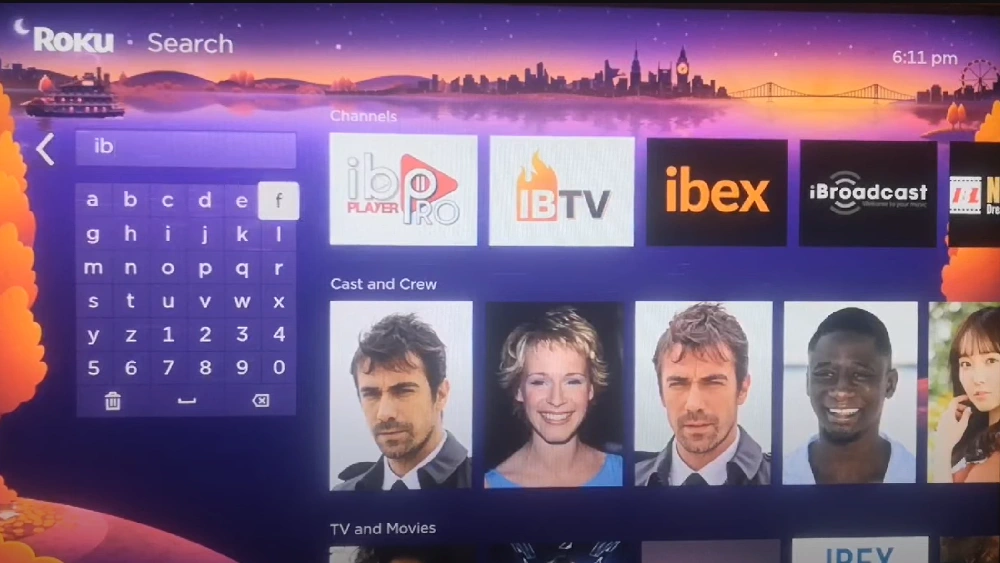
Step 3 : Use the search option and type “IBO Player Pro” to find the app.
Step 4 : Let Roku download and install IBO Player Pro.
Once all is done, please subscribe if you haven’t already. Once we confirm your subscription (payment), we will guide you and install everything for you.